AI dashboard and AI agents
Two screens: /ai, which shows how the AI has been used across your
organisation, and /ai/agents, where you start a longer analysis and
read what comes back.
The AI in Aegis reads and drafts. An agent run (one AI task you describe in a sentence and leave to work in the background) can summarise where a framework stands, reason over your risk register or draft a procedure. The AI Dashboard is a read-only health check of all that activity. The AI Agents page is where runs are started, watched and read.
An agent produces text and stops. It never writes into a policy, a risk or a control on its own. When a run finishes you read the result and choose what to do with it: copy it, save it as a record, or turn it into an action item or work items. Each is a button a person presses.
Who uses it
Both pages need at least the Contributor role. A
Viewer who opens
/ai or /ai/agents is sent to the "not authorised"
page. A Contributor or
Manager can read the dashboard,
start runs, cancel a run that is still going and act on results. An
Admin also sees an extra
Model execution provenance section on the dashboard and can manage
AI models in Settings.
Both menu entries depend on AI assistance being enabled for your organisation.
If it is switched off, the dashboard and agents entries disappear from the
AI group in the left menu, and the group shows only
Playbooks where that module is on.
What's on this screen
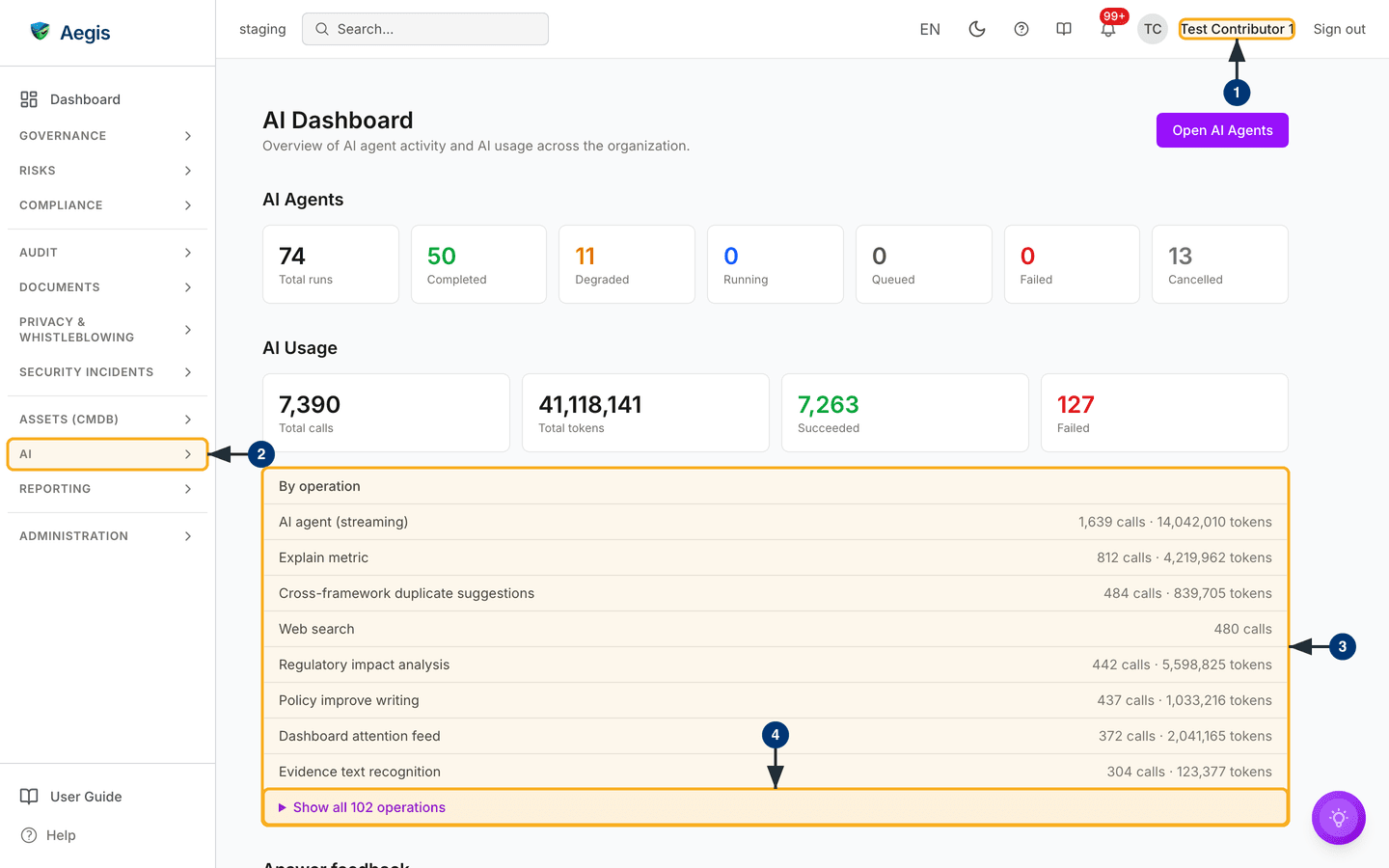
The AI Dashboard has nothing to fill in. The heading
AI Dashboard sits top left with a one-line description. Top right
is a purple Open AI Agents button, the only action in the page
header.
Below it, the AI Agents band shows seven count cards:
Total runs, then Completed, Degraded,
Running, Queued, Failed and
Cancelled. In the captured screen these read 74, 50, 11, 0, 0, 0
and 13; your own figures will differ.
The AI Usage band follows, with four cards:
Total calls, Total tokens, Succeeded and
Failed. These count every AI call in the organisation, not only
agent runs. Under the cards, the By operation panel lists the first
eight kinds of AI task with the calls and
tokens (the units of text a model reads and
writes) each has used. A Show all 102 operations line folds away
the rest.
Further down, out of view in this capture, are Answer feedback and Recent agent runs. Only the first heading peeks in at the bottom edge.
Reading the AI Dashboard
- Check the account name at the top right. The capture was taken as a Contributor; an Admin sees one more section on this page (see below).
-
Open the
AIgroup in the left menu. It expands to showAI DashboardandAI Agents, plus Playbooks where that module is on. SelectAI Dashboardto land on this page. -
Read the
By operationpanel. Each row names an AI task, such asAI agent (streaming)orExplain metric, with its call count and token total on the right. A row likeWeb searchshows calls only: token use is not recorded for every operation, and "0 tokens" would read as a measured zero. -
Select
Show all 102 operationsat the foot of the panel. The list expands in place to show every remaining operation in the same format. Select the line again to fold it.
Read the agent-run cards as a health check rather than a place to act:
| Card | What it tells you |
|---|---|
Completed |
Finished, with a result you can open and read. |
Degraded |
The agent answered but could not reach your GRC data, so the text is generic framework material, not an analysis of your records. The run detail says so in an orange banner. |
Running |
Working in the background right now. |
Queued |
Submitted but not yet picked up. A count that stays high suggests the background worker is busy or stopped. |
Failed |
Stopped on an error. A rising count is worth raising with your administrator. |
Cancelled |
Stopped by a person before it finished. Only the
Cancel run button sets this; nothing cancels a run
automatically.
|
Below the usage panel
Answer feedback totals the Helpful /
Not helpful votes people leave on AI assistant answers:
Answers rated, Helpful, Not helpful and
Rated helpful as a percentage, with no message text and no names.
Recent agent runs lists the five newest runs with their type, status and time. To open a run, use the agents page.
Model execution provenance (Admin only)
An Admin sees a Model execution provenance section between the
agent and usage bands, not in the Contributor capture above. It shows which
provider and model served each AI call and how much of that is backed by a
gateway receipt, split By evidence status and
By provider. Export provenance (CSV) downloads the
detail for an auditor.
What's on the AI Agents page
Select Open AI Agents on the dashboard, or
AI Agents in the AI group, to reach
/ai/agents, headed AI Agents.
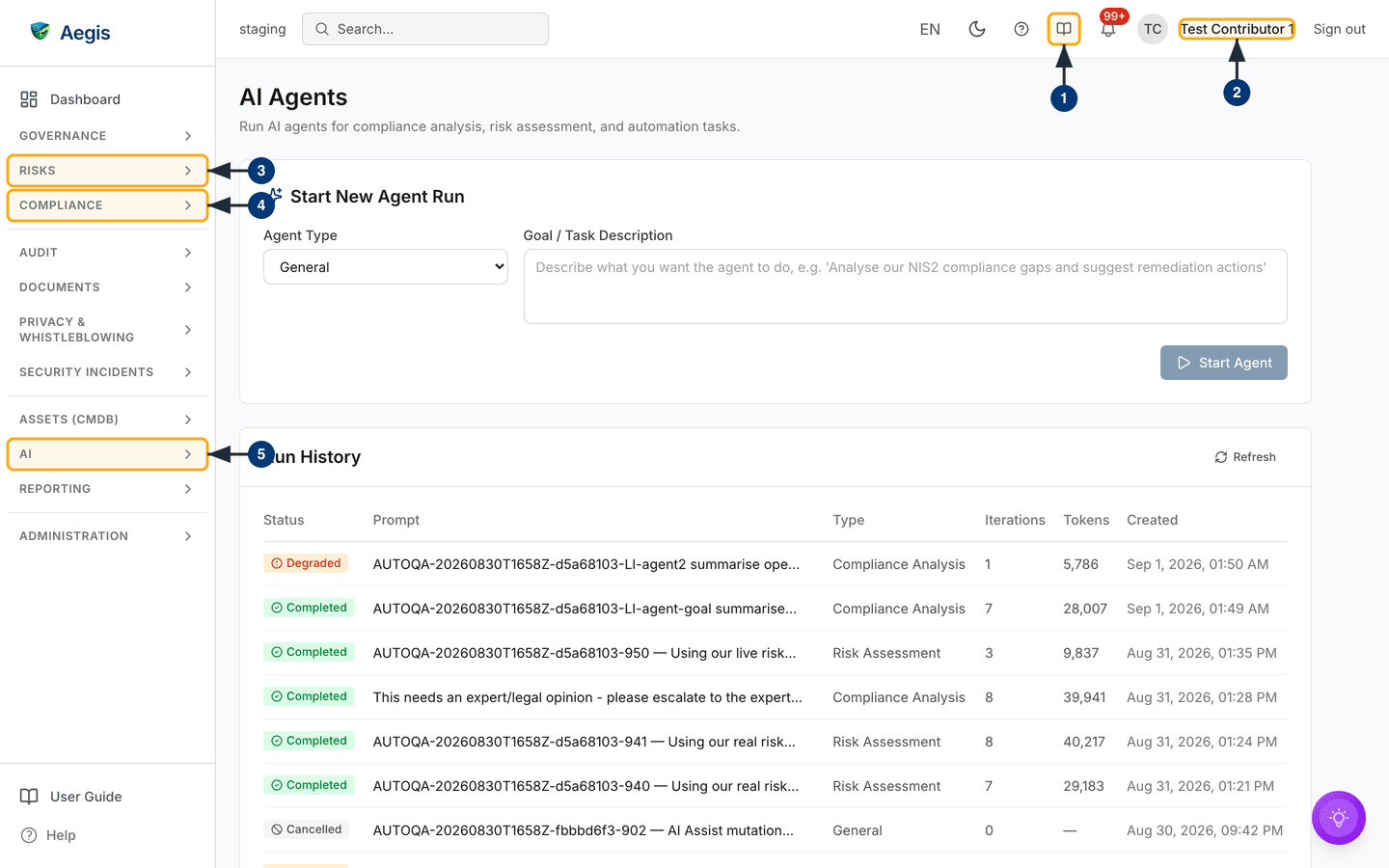
The upper panel, Start New Agent Run, holds an
Agent Type dropdown (showing General), a wide
Goal / Task Description box with an example in grey, and a
Start Agent button at the bottom right. In the capture the box is
empty, so Start Agent is greyed out.
The lower panel, Run History, has a
Refresh control at its right-hand end and a table of every run in
the organisation, newest first. Its columns are Status,
Prompt, Type, Iterations,
Tokens and Created. The capture shows a mix of
Degraded, Completed and Cancelled runs of
all three types.
Before you start a run
An agent reasons over what is already in Aegis. Check the ground first.
- Select the book icon in the top bar if you want this chapter open beside the page. It opens the User Guide at the section for the screen you are on.
- Confirm the account at the top right. The run is logged against it, and everyone who can open this page sees it in the history.
-
Make sure the risks you want examined are recorded under
RISKS. ARisk Assessmentrun can only reason about risks already in the register; your sentence points it at them, it does not supply them. -
Check
COMPLIANCEfor the frameworks and controls aCompliance Analysisrun will reason over. -
Use the
AIgroup to move between this page and the dashboard once a run is going and you want to watch the counts change.
Starting a run
-
Choose an
Agent Type. The dropdown offersCompliance Analysis,Risk AssessmentandGeneral, and opens onGeneral. The type sets the instructions the agent works under, which steers what it reaches for first. It is not a different engine: every run uses the same read-only lookups. -
Write the goal in
Goal / Task Description. Be specific. "Check compliance" gives the agent almost nothing; "list the NIS2 controls we have marked as not implemented and suggest evidence for each" gives it a direction. -
Select
Start Agent. It stays greyed out until the goal box has text. It then showsStarting…, resets the form toGeneral, and reloads the history from page one with your run at the top. If the request is refused, a red message appears above the button and no run is created.
Watching a run and reading the result
A run works in the background, so nothing spins while you wait. Come back and reload the list.
-
Select
Refreshat the right-hand end of theRun Historyheader. The icon spins and the table reloads in place. -
Read the row.
Iterationscounts the reasoning steps taken, andTokensreads—until there is a figure to show. -
Select the row to open the
Agent Runwindow: status badge, agent type, the fullPromptand, once finished, theResult. A failed run shows anErrorsection instead. A degraded run shows an orange banner explaining that the agent could not retrieve your GRC data, so the answer is generic rather than an analysis of your records. -
Open
Tool callsbelow the result, where the agent used any. Each step names the lookup it made and shows what came back. -
Act on it. Under the result,
Save as recordstores the text as an AI insight linked back to this run.Create action itemopens a short form with the description prefilled; you write the title.Create work itemsappears where your role can create roadmap work.Copyin the window footer puts the text on your clipboard; it shows only for aCompletedorDegradedrun with an answer. A run stillQueuedorRunningshows a redCancel runbutton in the footer instead.
The table shows twenty runs to a page, with Previous /
Next underneath when there are more. There is no per-person filter.
Before the first run the table reads No agent runs yet; if the list
cannot load, it shows Failed to load agent runs with a
Try again button.
The AI assist
The form takes one free-text goal, so what an agent is good for depends on what you ask: summarising a document's obligations, suggesting a risk classification as a starting point, drafting a procedure for you to correct, or explaining what a control asks for. In every case the agent produces text and stops. Turning that text into something binding is a decision a person makes with a button. The AI assists; the organisation decides.
Tips and limits
- The model can state wrong things with confidence (hallucination). The risk is highest with article numbers, recent legal changes and contract wording. Check against the official source, and read AI-drafted text line by line before it goes into a policy, an audit response or a regulatory submission.
-
A
Degradedresult is not a failed one, and nothing in it is evidence about your organisation. - "No gaps found" means the agent found none with the information it had, not that your compliance position is sound.
-
A submitted run cannot be edited. If the type or goal was wrong, cancel it
while it is still
QueuedorRunningand start a fresh one. - The dashboard counts are organisation-wide totals with no date filter. Only the Admin provenance section has an export.
Where this connects
AI agents goes further into run types and results. The output sits next to the records it feeds: Policies and Procedures for drafted text, Risks for a suggested classification, Compliance frameworks for the gaps a Compliance Analysis run reasons over, and Action items for tasks raised from a result. Model configuration lives in Settings; role limits are in What each role can do.